


Framework Laptop 13 AMD Ryzen™ AI 300 Series — BIOS 4.02
Downloads
Section titled “Downloads”- Added support for Framework Laptop 13 Pro features — enabled compatibility for the haptic touchpad, touch panel, and 74W battery
- Updated audio verb table to support new speakers in the Framework Laptop 13 Pro chassis
- Added current battery level indicator to the BIOS Setup menu
- Optimized widescreen rendering layout in the BIOS Setup menu
- Standardized and corrected naming of various BIOS options
- Updated PMF settings to support the updated 74Wh battery
- Added Board ID support for new side LEDs
- Fixed issue allowing the system to flash a BIOS intended for a different hardware platform
- Fixed bug where iGPU Memory Size would fail to stay at 1/4 of total system memory after loading optimal defaults
- Fixed issue where the system would fail to automatically power on upon connecting an AC adapter
- Fixed bug where Chassis Intrusion Detection failed to revert to Disabled when supervisor password was cleared due to TPM availability changes
- Resolved issue where Windows would unexpectedly enter Automatic Repair after changing TPM Availability to Hidden
- Resolved issue where PMF power slider value would mismatch actual CPU performance after reboot
- Resolved cosmetic issue with BIOS icon malformation
- Fixed an issue where the Battery Extender status was reported incorrectly following a reboot, hibernation, or shutdown after the timer had expired.
Component Versions
Section titled “ Component Versions ”This BIOS update is a bundle of updates to multiple embedded components in the system. Not all of them use the same version number.
| Component | Version | |
|---|---|---|
| EC | ec_402_fdbf549 | Updated |
| PD | 0.0.21 | |
| AMD PI | 1.1.0.0c |
Windows Driver Component Versions
Section titled “ Windows Driver Component Versions ”| Driver | Version | |
|---|---|---|
| AMD Chipset Driver | 8.02.18.557 | Updated |
| AMD Graphics Driver | 25.10.25.32 | Updated |
| Realtek Audio Driver | 6.0.9969.1 | Updated |
| Realtek Audio Console | 1.53.389.0 | Updated |
| RZ717 WiFi Driver | 5.7.0.5416 | Updated |
| RZ717 Bluetooth Driver | 1.1146.0.572 | Updated |
| WiFi ACX Driver | 1.6.0.47 | Updated |
| Goodix Fingerprint Driver | 3.12804.1.290 | Updated |
| AMD DRTM Driver | 1.0.19.2 | Updated |
| Framework 2nd Gen Camera Driver | 10.0.22000.20402 | Updated |
| Realtek MEP Opt-in Driver | 10.0.22000.10004 | Updated |
| AMD MEP Extension Driver | 32.2.0.3 | Updated |
| Microsoft MEP Driver | 2.0.28 | Updated |
| Framework EC | 0.0.0.6 | |
| Realtek Ethernet (Expansion Card) | 11013_20_07272023_08042023 | |
| SD Card Reader (Expansion Card) | v4_5_10_201 | |
| 2nd Gen uSD Card Reader (Expansion Card) | v4_5_10_202 |
Installation
Section titled “Installation”You can check your current BIOS version following the steps here to determine if you are on the latest release.
Framework firmware is published to LVFS and updates via fwupd, which ships by default on most modern
distributions.
fwupdmgr refresh --forcefwupdmgr get-updatesfwupdmgr updateWindows
Section titled “Windows”- Download the Framework Laptop 13 AMD Ryzen™ AI 300 Series BIOS 4.02 Windows Installer.
- Run the
.exeand click "Yes" when prompted to reboot. - Wait for the firmware progress bar to complete — the system will reboot automatically. Do not interrupt.
- Download and install the Windows Driver Bundle v2.00 for your system if you are currently using a previous Driver Bundle release, or you are installing the Driver Bundle for the first time.
EFI Shell Update
Section titled “ EFI Shell Update ”- Download the EFI Shell Update v4.02.
- Extract contents of zip folder to a FAT32 formatted USB drive. Cleanly unmount the drive before physically removing it, otherwise the BIOS update may not function correctly.
- Attach a charger to your device while updating.
- Boot your system while pressing F12 and boot from the thumb drive.
- Let startup.nsh run automatically.
- Follow the instructions to install the update.
Updating a Mainboard without a Laptop
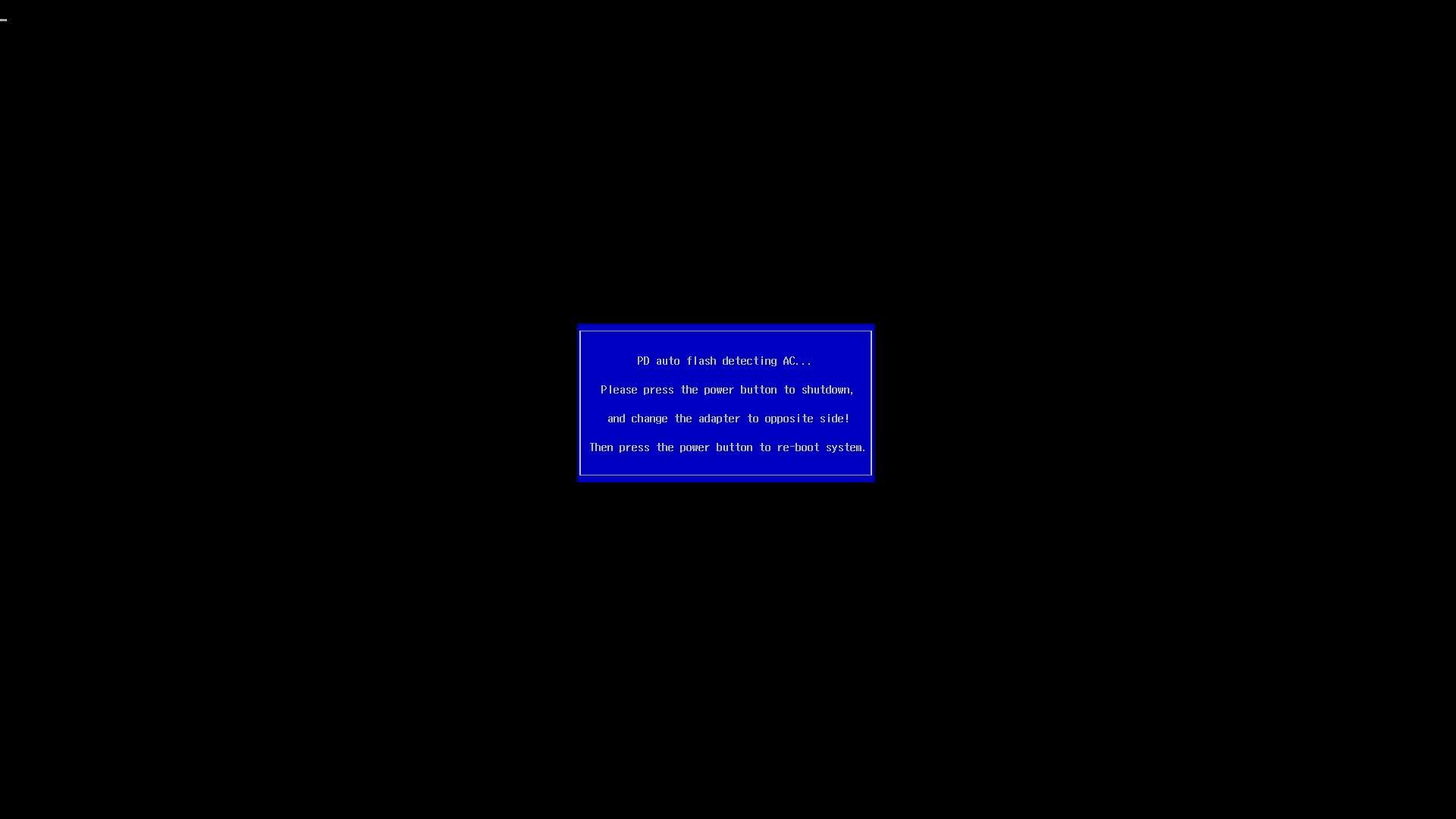
Section titled “Updating a Mainboard without a Laptop”This release supports standalone updates without a battery attached. After rebooting, please follow the onscreen instructions to update your BIOS when in standalone mode, which will require moving the power source between both sides of the Mainboard to allow PD firmware to update correctly.
- Ensure that standalone operation is enabled in the BIOS advanced setup menu.
- Connect the external display to upper left port.
- Connect the power to the lower left port.
- Run the updater from EFI/Windows updater.
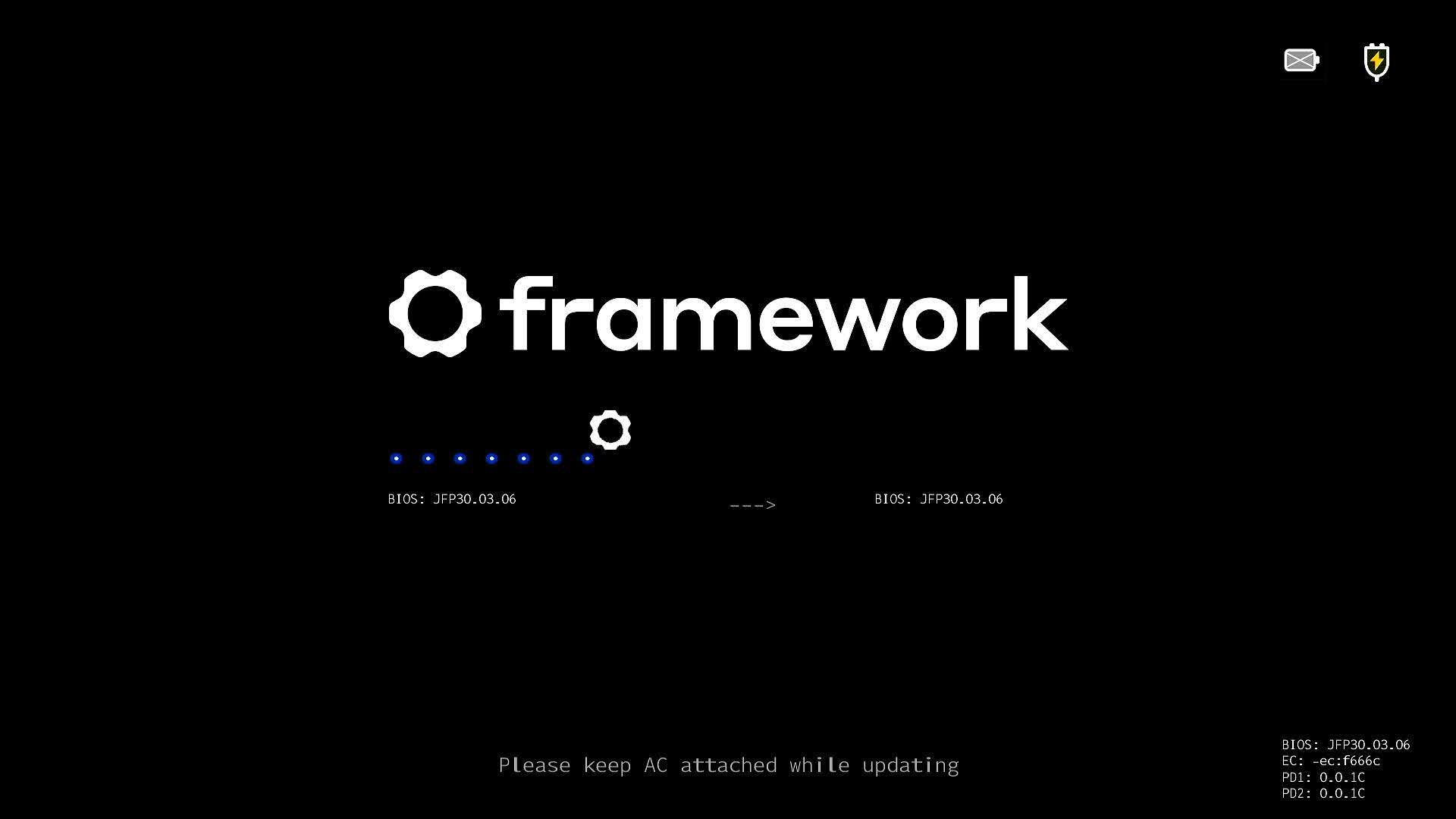
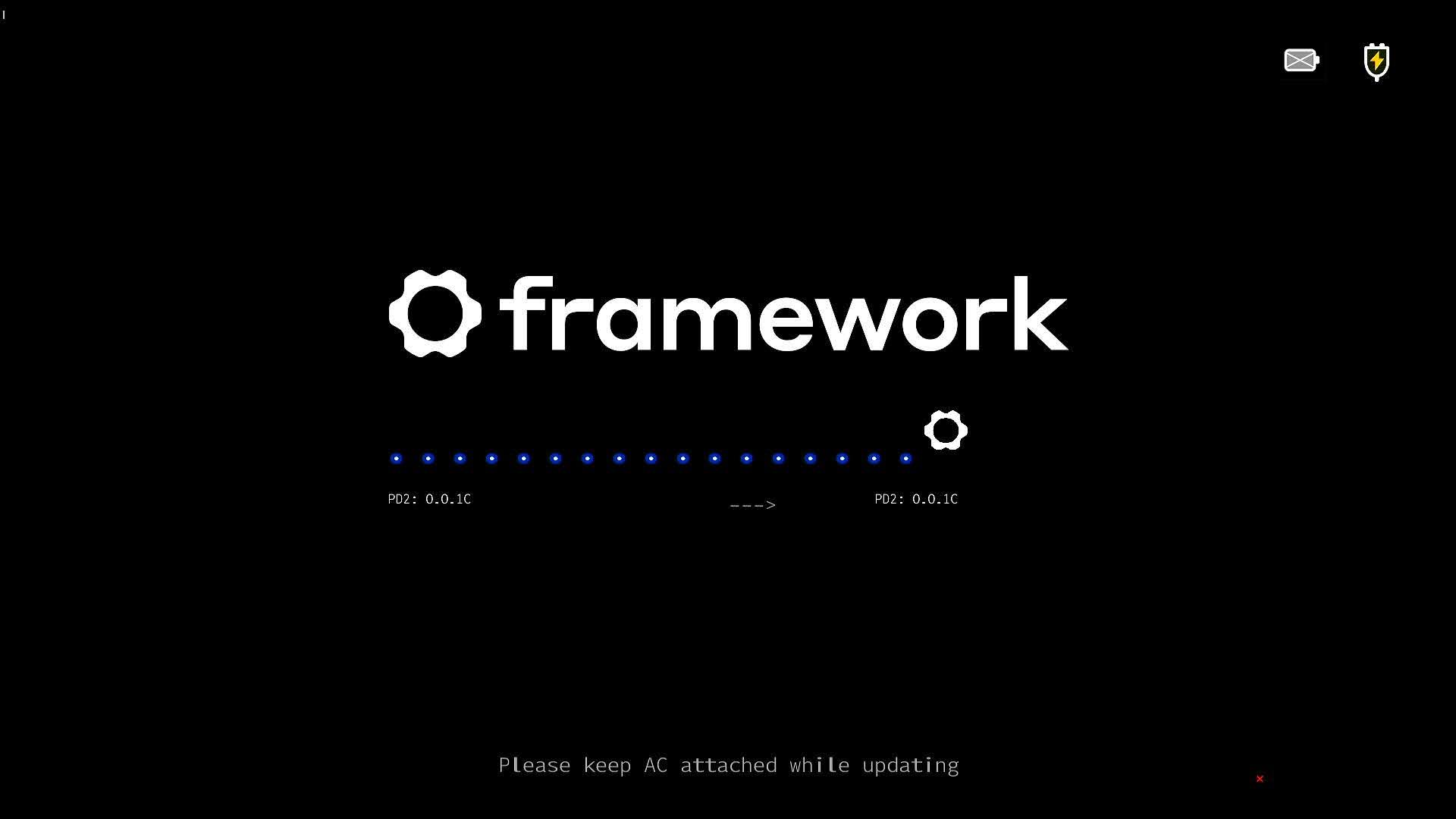
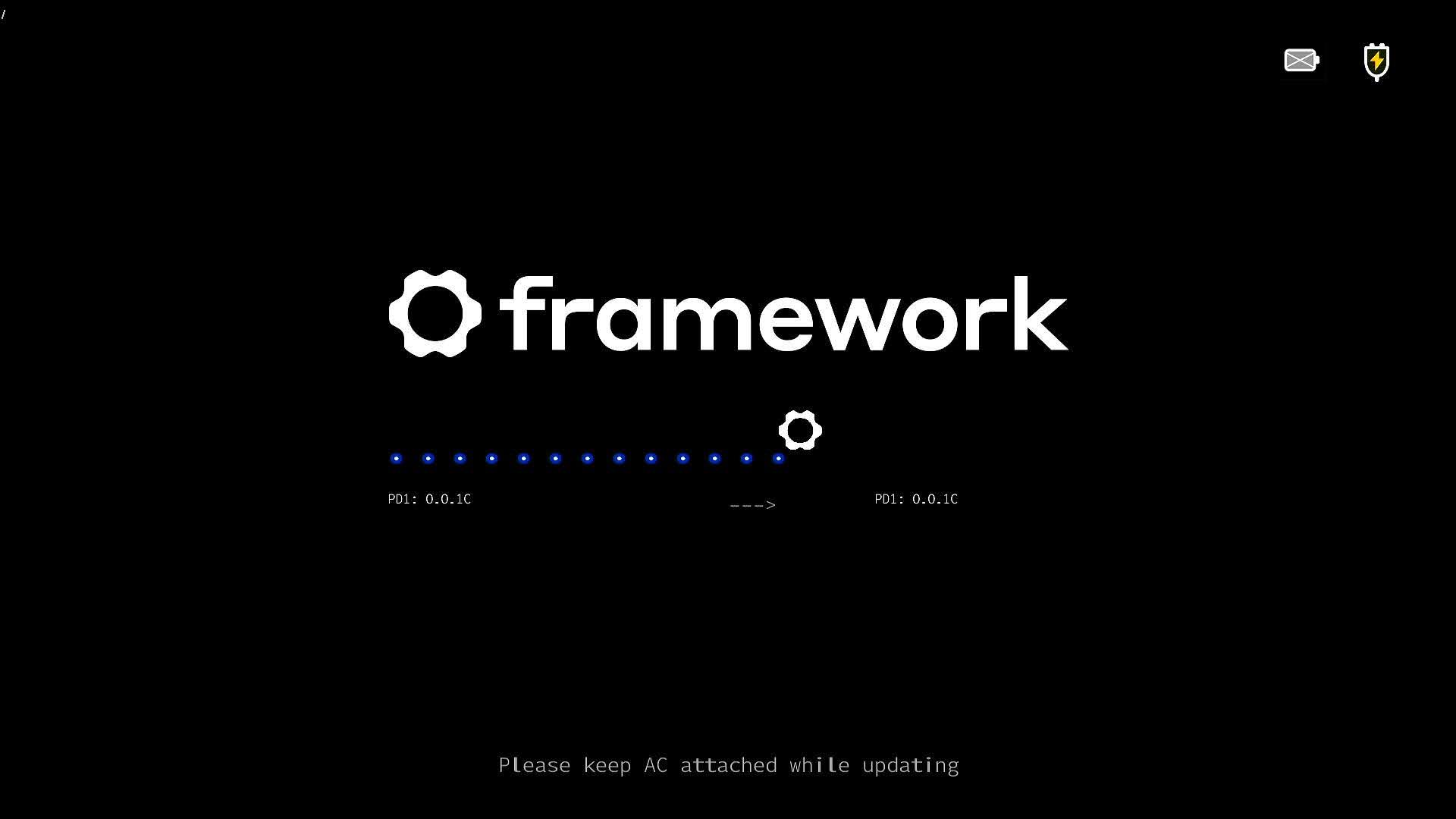
- After rebooting into the updater, the update will commence. The updater will update the BIOS and EC.
- The Updater will update the PD controller that is not connected to the power source.
- You will see one PD controller will fail the update with the X, and "Update Complete" is displayed, but the BIOS will restart. At this screen, the BIOS update will stop. You must disconnect the display and power source, and move them to the other side. * Connect the display to the top right port. * Connect power to the bottom right port.
- Press the power button, and the second PD update will complete.
- After this, the system will reboot, and your BIOS update is complete.
Known Issues
Section titled “ Known Issues ”- Setting TPM to hidden may cause systems with WD PC SN740 SSDs to get stuck in automatic repair during boot.
Reporting Issues
Section titled “Reporting Issues”Please use the public issue tracker on GitHub to report issues.
If you experience an issue with the update that is related to your system firmware, please post as complete a description as you can, including relevant system information and external peripherals. Please note that we do not currently have a SLA for responding to issues on github, but we will be reviewing them through the bios release process, and will review them for future updates as well.
Please contact support if you have an issue regarding hardware, broken devices, returns, etc.